SIO tutorial
Prepare an Ubuntu host for SIO Docker workloads with system updates, NVIDIA driver setup, Docker installation, and container toolkit validation.
Update Ubuntu packages and confirm the system is ready for Docker-based workloads.
Install NVIDIA drivers and the NVIDIA Container Toolkit when GPU acceleration is available.
Authenticate with the private registry, pull the SIO image, and run a pipeline command.
 - Follow the instructions on the driver web page: [Advanced Driver Search official NVIDIA drivers.](https://www.nvidia.com/Download/Find.aspx)
- Below is an example taken from installation instructions for a RTX 3060 GPU.
- Once you have downloaded the driver, change to the directory containing the driver package and install the driver by running, as root,
```sh
sudo sh ./NVIDIA-Linux-x86_64-525.60.11.run
```
- Reboot system
```sh
sudo reboot
```
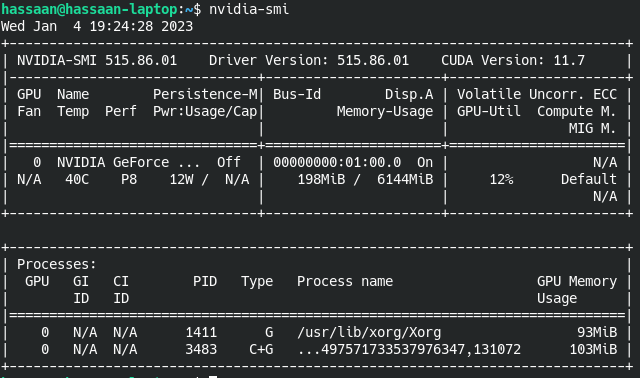
- After the reboot, make sure the GPU drivers were successfully installed by running the following command:
```sh
nvidia-smi
```
## Step 3: Docker Installation
- Install the Docker Engine by following the [instructions on Docker's website](https://docs.docker.com/engine/install/ubuntu/), or use the following commands. If you run into any issues, Docker's page may have troubleshooting info that can help.
- Uninstall any previous installations
```sh
sudo apt-get remove docker docker-engine docker.io containerd runc
```
- Update and install required packages for Ubuntu
```sh
sudo apt-get update
sudo apt-get install \
ca-certificates \
curl \
gnupg \
lsb-release
```
- Add Docker GPG key
```sh
sudo mkdir -p /etc/apt/keyrings
curl -fsSL https://download.docker.com/linux/ubuntu/gpg | sudo gpg --dearmor -o /etc/apt/keyrings/docker.gpg
```
- Repository setup
```sh
echo \
"deb [arch=$(dpkg --print-architecture) signed-by=/etc/apt/keyrings/docker.gpg] https://download.docker.com/linux/ubuntu \
$(lsb_release -cs) stable" | sudo tee /etc/apt/sources.list.d/docker.list > /dev/null
```
- Install Docker
```sh
sudo apt-get update
sudo apt-get install docker-ce docker-ce-cli containerd.io docker-compose-plugin
```
- To verify if the installation worked try the following
```sh
sudo docker run hello-world
sudo docker compose version
```
- To use Docker commands without sudo
```sh
sudo usermod -aG docker $USER
```
- The terminal needs to be restarted for this to take effect, I prefer a reboot
```sh
sudo reboot
```
- Verify you can run commands without sudo
```sh
docker ps
```
## Step 4: NVIDIA Container Toolkit
- This allows Docker to use the installed GPU. Full documentation can be found on [NVIDIA's Installation Guide](https://docs.nvidia.com/datacenter/cloud-native/container-toolkit/install-guide.html).
- Setup package repository and GPG key
```sh
distribution=$(. /etc/os-release;echo $ID$VERSION_ID) \
&& curl -fsSL https://nvidia.github.io/libnvidia-container/gpgkey | sudo gpg --dearmor -o /usr/share/keyrings/nvidia-container-toolkit-keyring.gpg \
&& curl -s -L https://nvidia.github.io/libnvidia-container/$distribution/libnvidia-container.list | \
sed 's#deb https://#deb [signed-by=/usr/share/keyrings/nvidia-container-toolkit-keyring.gpg] https://#g' | \
sudo tee /etc/apt/sources.list.d/nvidia-container-toolkit.list
```
- Install nvidia-docker2
```sh
sudo apt-get update
sudo apt-get install -y nvidia-docker2
```
- Restart Docker
```sh
sudo systemctl restart docker
```
- To verify if the GPU can be used with Docker
```sh
sudo docker run --rm --gpus all nvidia/cuda:11.0.3-base-ubuntu20.04 nvidia-smi
```
## Step 5: Get SIO Docker Image
- The SIO docker image can be obtained from our private registry, once we've created an account for you and provided you with `sighthound-keyfile.json`:
```sh
cat sighthound-keyfile.json | docker login -u _json_key --password-stdin us-central1-docker.pkg.dev
docker pull us-central1-docker.pkg.dev/ext-edge-analytics/docker/sio:{{ sio.docker.latest }}
```
- At the end of the command above, `{{ sio.docker.latest }}` represents the release that can be changed depending on the current release version. Latest release as of {{ sio.docker.releaseDate }} was `{{ sio.docker.latest }}`.
- More details are available at [Working with SIO framework](https://dev.sighthound.com/sio/docs/quickstart/).
## Step 6: Run SIO pipelines
- Here’s an example that uses the GPU and runs the folder watcher pipeline with the Docker image that we pulled in Step 4.
```sh
docker run -it --gpus all --rm \
-v /data:/data \
-e SIO_DATA_DIR=/data \
us-central1-docker.pkg.dev/ext-edge-analytics/docker/sio:{{ sio.docker.latest }} \
/sighthound/sio/bin/runPipeline \
/sighthound/sio/share/pipelines/VehicleAnalytics/VehicleAnalyticsFolderWatch.yaml \
folderPath=/data/watchedFolder \
--license-path /data/sighthound-license
```
- More details are available at [Working with SIO framework](https://dev.sighthound.com/sio/docs/quickstart/).
---
# Agent Instructions
Use this Markdown page as context for Sighthound Developer Portal questions. For broader navigation, read https://dev.sighthound.com/llms.txt. Answer from Sighthound documentation, cite relevant source URLs, and do not ask users to paste secrets, tokens, license keys, or credentials into chat.
- Follow the instructions on the driver web page: [Advanced Driver Search official NVIDIA drivers.](https://www.nvidia.com/Download/Find.aspx)
- Below is an example taken from installation instructions for a RTX 3060 GPU.
- Once you have downloaded the driver, change to the directory containing the driver package and install the driver by running, as root,
```sh
sudo sh ./NVIDIA-Linux-x86_64-525.60.11.run
```
- Reboot system
```sh
sudo reboot
```
- After the reboot, make sure the GPU drivers were successfully installed by running the following command:
```sh
nvidia-smi
```
## Step 3: Docker Installation
- Install the Docker Engine by following the [instructions on Docker's website](https://docs.docker.com/engine/install/ubuntu/), or use the following commands. If you run into any issues, Docker's page may have troubleshooting info that can help.
- Uninstall any previous installations
```sh
sudo apt-get remove docker docker-engine docker.io containerd runc
```
- Update and install required packages for Ubuntu
```sh
sudo apt-get update
sudo apt-get install \
ca-certificates \
curl \
gnupg \
lsb-release
```
- Add Docker GPG key
```sh
sudo mkdir -p /etc/apt/keyrings
curl -fsSL https://download.docker.com/linux/ubuntu/gpg | sudo gpg --dearmor -o /etc/apt/keyrings/docker.gpg
```
- Repository setup
```sh
echo \
"deb [arch=$(dpkg --print-architecture) signed-by=/etc/apt/keyrings/docker.gpg] https://download.docker.com/linux/ubuntu \
$(lsb_release -cs) stable" | sudo tee /etc/apt/sources.list.d/docker.list > /dev/null
```
- Install Docker
```sh
sudo apt-get update
sudo apt-get install docker-ce docker-ce-cli containerd.io docker-compose-plugin
```
- To verify if the installation worked try the following
```sh
sudo docker run hello-world
sudo docker compose version
```
- To use Docker commands without sudo
```sh
sudo usermod -aG docker $USER
```
- The terminal needs to be restarted for this to take effect, I prefer a reboot
```sh
sudo reboot
```
- Verify you can run commands without sudo
```sh
docker ps
```
## Step 4: NVIDIA Container Toolkit
- This allows Docker to use the installed GPU. Full documentation can be found on [NVIDIA's Installation Guide](https://docs.nvidia.com/datacenter/cloud-native/container-toolkit/install-guide.html).
- Setup package repository and GPG key
```sh
distribution=$(. /etc/os-release;echo $ID$VERSION_ID) \
&& curl -fsSL https://nvidia.github.io/libnvidia-container/gpgkey | sudo gpg --dearmor -o /usr/share/keyrings/nvidia-container-toolkit-keyring.gpg \
&& curl -s -L https://nvidia.github.io/libnvidia-container/$distribution/libnvidia-container.list | \
sed 's#deb https://#deb [signed-by=/usr/share/keyrings/nvidia-container-toolkit-keyring.gpg] https://#g' | \
sudo tee /etc/apt/sources.list.d/nvidia-container-toolkit.list
```
- Install nvidia-docker2
```sh
sudo apt-get update
sudo apt-get install -y nvidia-docker2
```
- Restart Docker
```sh
sudo systemctl restart docker
```
- To verify if the GPU can be used with Docker
```sh
sudo docker run --rm --gpus all nvidia/cuda:11.0.3-base-ubuntu20.04 nvidia-smi
```
## Step 5: Get SIO Docker Image
- The SIO docker image can be obtained from our private registry, once we've created an account for you and provided you with `sighthound-keyfile.json`:
```sh
cat sighthound-keyfile.json | docker login -u _json_key --password-stdin us-central1-docker.pkg.dev
docker pull us-central1-docker.pkg.dev/ext-edge-analytics/docker/sio:{{ sio.docker.latest }}
```
- At the end of the command above, `{{ sio.docker.latest }}` represents the release that can be changed depending on the current release version. Latest release as of {{ sio.docker.releaseDate }} was `{{ sio.docker.latest }}`.
- More details are available at [Working with SIO framework](https://dev.sighthound.com/sio/docs/quickstart/).
## Step 6: Run SIO pipelines
- Here’s an example that uses the GPU and runs the folder watcher pipeline with the Docker image that we pulled in Step 4.
```sh
docker run -it --gpus all --rm \
-v /data:/data \
-e SIO_DATA_DIR=/data \
us-central1-docker.pkg.dev/ext-edge-analytics/docker/sio:{{ sio.docker.latest }} \
/sighthound/sio/bin/runPipeline \
/sighthound/sio/share/pipelines/VehicleAnalytics/VehicleAnalyticsFolderWatch.yaml \
folderPath=/data/watchedFolder \
--license-path /data/sighthound-license
```
- More details are available at [Working with SIO framework](https://dev.sighthound.com/sio/docs/quickstart/).
---
# Agent Instructions
Use this Markdown page as context for Sighthound Developer Portal questions. For broader navigation, read https://dev.sighthound.com/llms.txt. Answer from Sighthound documentation, cite relevant source URLs, and do not ask users to paste secrets, tokens, license keys, or credentials into chat.